Technology
AI could drive US unemployment to 20%, senators warn as new bill targets job tracking


NEWYou can now listen to Fox News articles!
A new bipartisan push in Washington is shining a spotlight on AI’s impact on jobs. Senators Josh Hawley, R-Mo., and Mark Warner, D-Va., introduced the AI-Related Job Impacts Clarity Act, which would require major companies and federal agencies to report AI-related job impacts to the U.S. Department of Labor (DOL).
The legislation is designed to shed light on how artificial intelligence is affecting the U.S. workforce.
Sign up for my FREE CyberGuy Report
Get my best tech tips, urgent security alerts, and exclusive deals delivered straight to your inbox. Plus, you’ll get instant access to my Ultimate Scam Survival Guide — free when you join my CYBERGUY.COM newsletter
Key requirements of the AI-Related Job Impacts Clarity Act
The AI-Related Job Impacts Clarity Act sets out several core obligations:
- Covered entities must quarterly disclose job effects tied to AI. This includes layoffs, hires and positions left open because tasks were automated.
- The DOL must compile those disclosures and publish a public report, including to Congress.
- Non-publicly traded companies may be included under certain thresholds.
TRUMP’S AI PLAN IS A BULWARK AGAINST THE RISING THREAT FROM CHINA
The goal is to create a clear, consistent data source on how AI changes employment.
Why the AI-Related Job Impacts Clarity Act matters
AI is already reshaping the American workforce, and lawmakers from both parties say the country needs a clear view of what that means for jobs.
Sens. Josh Hawley and Mark Warner join forces on a new bipartisan bill to track how AI is changing American jobs. (Valerie Plesch/Bloomberg via Getty Images)
Hawley warned that the trend is accelerating.
“Artificial intelligence is already replacing American workers, and experts project AI could drive unemployment up to 10 to 20% in the next five years,” Hawley said. “The American people need to have an accurate understanding of how AI is affecting our workforce, so we can ensure that AI works for the people, not the other way around.”
Warner agreed, saying good data is key to good policy
“This bipartisan legislation will finally give us a clear picture of AI’s impact on the workforce, what jobs are being eliminated, which workers are being retrained, and where new opportunities are emerging,” he said. “Armed with this information, we can make sure AI drives opportunity instead of leaving workers behind.”
PROTECTING KIDS FROM AI CHATBOTS: WHAT THE GUARD ACT MEANS
Their shared goal is simple. The AI-Related Job Impacts Clarity Act would make AI’s workforce impact visible and accountable. It gives you and policymakers the hard data needed to guide smarter decisions about automation and employment.
Challenges in tracking AI-related job impacts
While the bill sounds promising, several hurdles remain. The biggest challenge is consistency. Each company decides what counts as an AI-related job impact, which could lead to uneven or incomplete reporting.
Smaller businesses might also escape the rules altogether if they fall outside the reporting thresholds. That could leave big gaps in understanding how automation affects local or niche industries.
Data quality is another concern. Even with reporting requirements, the system relies on companies to share accurate information. The Department of Labor will need strong verification to make sure the reports reflect reality.
LIZ PEEK: AI LAYOFFS COULD SPARK A SOCIALIST SURGE IF AMERICA IGNORES THE WARNING SIGNS
And while transparency is valuable, it doesn’t automatically protect jobs. The law can expose the problem, but real progress will depend on what policymakers and employers do with that data.
The AI-Related Job Impacts Clarity Act would make companies report when automation replaces, adds or reshapes jobs. (Kurt “CyberGuy” Knutsson)
What this means for you
If you work in an industry where AI tools are becoming common, this bill could directly affect you. It would make it easier to see how automation changes jobs across the country. You’ll be able to find out which roles are being replaced and which ones are being created.
This new level of visibility could also pressure employers to be more transparent about layoffs. Companies may start explaining whether job cuts are truly due to AI or part of broader business shifts. That accountability could help workers plan smarter for the future.
With clearer data, policymakers and training programs can step in faster. If large numbers of people in a certain field lose work because of automation, the government could push for retraining or job placement efforts. It may even help workers prepare earlier by learning new digital or technical skills before AI impacts their roles.
SEN SANDERS: AI MUST BENEFIT EVERYONE, NOT JUST A HANDFUL OF BILLIONAIRES
Overall, this bill puts information in the public’s hands so workers can understand what’s happening to their jobs instead of being left in the dark.
Take my quiz: How safe is your online security?
Think your devices and data are truly protected? Take this quick quiz to see where your digital habits stand. From passwords to Wi-Fi settings, you’ll get a personalized breakdown of what you’re doing right and what needs improvement. Take my Quiz here: Cyberguy.com
Kurt’s key takeaways
The AI-Related Job Impacts Clarity Act marks a major step toward tracking how automation changes the American workforce. It doesn’t stop AI from transforming industries, but it gives workers and policymakers the facts they need to respond. Transparency can’t stop every job loss, but it can help guide smarter policies, retraining programs and career planning.
The Department of Labor would publish regular reports showing where AI is creating challenges and new opportunities for workers. (Getty)
CLICK HERE TO DOWNLOAD THE FOX NEWS APP
If this new data shows your field is being reshaped by AI, would you start retraining now or wait to see how it plays out? Let us know by writing to us at Cyberguy.com
Sign up for my FREE CyberGuy Report
Get my best tech tips, urgent security alerts, and exclusive deals delivered straight to your inbox. Plus, you’ll get instant access to my Ultimate Scam Survival Guide — free when you join my CYBERGUY.COM newsletter
Copyright 2025 CyberGuy.com. All rights reserved.



NEWYou can now listen to Fox News articles!
You place a food order, check your phone, and instead of a driver pulling up, a drone lowers your meal to your front yard. That scenario is already playing out in the Garden State. But before you get too excited, this is still a limited test.
Grubhub just launched New Jersey’s first drone-powered food delivery pilot, and it is getting plenty of attention. The three-month program kicked off on March 18 in Green Brook, just a few miles from Middlesex. If you live within about 2.5 miles of the location, you may be able to try it yourself.
Even better, you will not pay anything extra to choose the drone option.
Sign up for my FREE CyberGuy Report
Get my best tech tips, urgent security alerts, and exclusive deals delivered straight to your inbox. Plus, you’ll get instant access to my Ultimate Scam Survival Guide – free when you join my CYBERGUY.COM newsletter
YOUR DOORDASH ORDER MIGHT ARRIVE FROM THE SKY AS DRONE DELIVERIES TAKE OFF
Grubhub launches a three-month drone delivery test in New Jersey, offering faster drop-offs with no added cost. (Grubhub)
How the drone delivery program works
The program is based out of Wonder’s Green Brook location, which operates a multi-restaurant kitchen. That means your order can come from one of 15 different food concepts, all prepared in the same place.
Here is how it works step by step:
- You order through the Grubhub app
- You select drone delivery if you are eligible
- Your food is prepared and secured by trained staff
- A drone flies it along a pre-approved route
- The order is lowered safely to the ground using a tether
You can track everything in real time, just like a regular delivery. It feels familiar, but the final step looks very different.
Why this could be faster than your usual delivery
Timing matters when you are hungry. That is where drones may have a real advantage. Unlike drivers, drones do not deal with traffic, stoplights or parking. They fly directly to your location using optimized flight paths.
Grubhub says deliveries should arrive faster than traditional methods. While that will vary based on conditions, the goal is simple. Less waiting, more eating. This test will help the company see if that promise holds up in real neighborhoods.
AIR TAXIS IN THE US COULD LAUNCH THIS SUMMER
New Jersey residents within range can order food by drone, with real-time tracking and tethered drop-offs. (Grubhub)
The tech behind the delivery drones
The program uses the DE-2020 drone from Dexa, a company that specializes in autonomous delivery systems.
This is not a hobby drone. It is a fully automated aircraft built for commercial use.
Key features include:
- FAA-certified operations for safety and compliance
- Secure communication systems during flight
- Controlled drop-off using a tether system
- Pre-planned routes to reduce noise and disruption
Before each flight, crews check that food is packaged and secured properly. That step helps prevent spills or issues mid-air. In short, there is a lot more going on behind the scenes than a simple takeoff and landing.
We reached out to Grubhub, and a spokesperson shared the following statement:
“Our partnership with Dexa represents a major step forward in Grubhub’s commitment to delivery innovation,” said Abhishek “PJ” Poykayil, SVP of customer delivery operations at Wonder and Grubhub. “By connecting Grubhub’s marketplace expertise, Wonder’s innovative mealtime platform, and Dexa’s expansive drone technology, we’re proud to introduce a faster and more efficient way for New Jersey diners to experience food delivery without compromising safety or reliability.”
We also reached out to Dexa for more insight into the technology behind the program. CEO and founder Beth Flippo shared the following with CyberGuy:
“At Dexa, we’re proud to be powering the underlying autonomous technology that enables this new generation of on-demand delivery. Our partnership with Grubhub brings together their industry-leading logistics network with our advanced autonomy platform, which is designed to safely navigate complex environments, optimize real-time routing, and operate reliably without the need for continuous human intervention. This is a meaningful step toward a future where autonomous systems are woven seamlessly into everyday life, from delivering food and goods to supporting transportation, infrastructure and critical services. As consumers continue to expect faster, more efficient and more sustainable options, autonomy will play a central role in meeting those expectations at scale.”
FORGET DRONES, THIS STREET-SMART ROBOT COULD BE FUTURE OF LOCAL DELIVERIES
Autonomous drones designed by Dexa deliver meals from a central kitchen, bypassing traffic in a new suburban pilot program. (Grubhub)
Why companies are pushing drone delivery now
This move is not random. It is part of a bigger shift in how companies think about delivery. You and I want speed, convenience and reliability. At the same time, businesses want to reduce costs and scale faster. Drone delivery sits right in the middle of that.
It removes many of the delays tied to traditional delivery. It also opens the door to new models, especially in suburban areas where distances are manageable.
We are already seeing this play out in other parts of the country. Companies like Wing, backed by Google’s parent company Alphabet, have been testing and expanding drone deliveries for food, retail and small packages in select U.S. markets.
This New Jersey test is another step in that direction, and it shows how quickly the space is evolving.
What this means to you
Even if you are not in Green Brook, New Jersey, this still matters. Here is why:
You may get faster deliveries
If this works, shorter delivery times could become the new normal.
You could see more delivery options
Apps may soon offer choices like driver, robot or drone depending on your location.
It could change delivery costs
Right now, there is no added fee. In the future, pricing models may shift based on speed and demand.
Your neighborhood may see more drones
That raises questions about noise, safety and privacy that communities will need to address.
This is not only about food. The same technology could expand to groceries, retail and even medical supplies.
Take my quiz: How safe is your online security?
Think your devices and data are truly protected? Take this quick quiz to see where your digital habits stand. From passwords to Wi-Fi settings, you’ll get a personalized breakdown of what you’re doing right and what needs improvement. Take my Quiz here: Cyberguy.com
Kurt’s key takeaways
It is easy to see drone delivery as some sort of cool experiment. But something bigger is starting to take shape right above us. For the first time, the sky is becoming part of everyday delivery. Today it is takeout. Tomorrow it could be groceries, last-minute essentials or even urgent supplies. If this technology proves reliable, and we get comfortable with it, the way you get what you need could change faster than you expect. So the next time you hear a faint buzz overhead, you may want to look up. It might not be a plane. It could be your dinner on the way. The real question is not if drones will become part of daily life. It is how soon you will be tracking one to your doorstep.
Would you trust a drone to deliver your next meal? Why or why not? Let us know by writing to us at Cyberguy.com
CLICK HERE TO DOWNLOAD THE FOX NEWS APP
Sign up for my FREE CyberGuy Report
Get my best tech tips, urgent security alerts, and exclusive deals delivered straight to your inbox. Plus, you’ll get instant access to my Ultimate Scam Survival Guide – free when you join my CYBERGUY.COM newsletter
Copyright 2026 CyberGuy.com. All rights reserved.

Netflix’s prices just went up, with its cheapest, ad-supported tier now reaching $8.99 / month (up from $7.99 / month), according to an updated support page spotted earlier by Android Authority. The standard and premium plans are also getting a hike, going from $17.99 to $19.99 / month and $24.99 to $26.99 / month, respectively.
Netflix didn’t share its reasoning for the price hike this time around, as it last cited delivering “more value for our customers.” It’s also unclear when the price hike will go into effect for existing subscribers. The Verge reached out to Netflix with a request for comment but didn’t immediately hear back.

NEWYou can now listen to Fox News articles!
If you’ve ever wondered how platforms keep up with millions of users at once, this is where things get real. Roblox has over 144 million daily users. That scale creates a massive challenge. Harmful content does not always show up in obvious ways. Sometimes, it is the combination of things that creates the problem. Now, the company is rolling out a new system designed to catch exactly that. But first, it helps to understand what Roblox actually is.
Sign up for my FREE CyberGuy Report
Get my best tech tips, urgent security alerts, and exclusive deals delivered straight to your inbox. Plus, you’ll get instant access to my Ultimate Scam Survival Guide – free when you join my CYBERGUY.COM newsletter
MEXICAN ILLEGAL ALIEN ALLEGEDLY USED ROBLOX CURRENCY TO SOLICIT EXPLICIT CONTENT FROM KIDS UNDER 10
Roblox rolls out a new AI system that analyzes entire scenes in real time to detect harmful content across its platform. (Brent Lewin/Bloomberg via Getty Images)
What is Roblox
Roblox is an online platform where people can create, share and play games built by other users. Instead of being a single game, it is a massive ecosystem of user-generated experiences that range from simple obstacle courses to complex virtual worlds.
What makes Roblox different is how much control users have. Players are not just consuming content. They are constantly creating it in real time through avatars, text and interactive environments. That constant creation is exactly what makes moderation more complex.
A smarter way to spot harmful content
Most moderation tools look at one thing at a time. A message. An image. An avatar. That approach can miss the bigger picture. Speaking exclusively with CyberGuy, Matt Kaufman, Roblox’s chief safety officer, explained the shift clearly:
“We already moderate all of the objects in a virtual world, but how they come together and interact has long been a challenge. Our new real-time multimodal moderation system looks at an entire scene simultaneously from the user’s point of view – including 3D objects, avatars, and text – capturing all of these elements together in a specific moment to assess whether the combination of content types breaks our rules.”
This is called multimodal moderation. Instead of analyzing pieces in isolation, it looks at everything together in real time.
Why older systems were missing the problem
Here is the issue platforms have faced for years. Something can look harmless on its own. But when combined with other elements, it can become harmful or violate rules.
Kaufman puts it this way: “Traditional AI moderation systems, which moderate one object at a time, can lack context and miss combinations that could be problematic in ways that the individual items are not. This model understands the relationship between different objects and how they come together to catch nuanced violations that standard filters may miss.”
That missing context is exactly what bad actors have been exploiting.
What this new AI actually catches
This system focuses on scenarios that previously slipped through. Think about games where users can draw freely or customize avatars. A drawing alone might seem fine. An avatar alone might seem fine. But together, they could create something inappropriate.
Kaufman explains how the system handles that: “The system can detect combinations of objects that may violate our community standards. For example, some games allow free-form drawing. This real-time multimodal moderation system would look at the drawing, avatar, and 3D setting together and assess it holistically, in order to catch and shut down servers with violating content.”
Right now, the rollout is already targeting problematic avatars and inappropriate drawings.
LOUISIANA SUES ONLINE GAMING PLATFORM ROBLOX FOR ALLEGEDLY ENABLING CHILD PREDATORS
Roblox officials say the new system aims to proactively protect children while maintaining gameplay for compliant users. (Riccardo Milani/Hans Lucas/AFP via Getty Images)
The scale is bigger than you think
This is not a small tweak. It is operating at a massive scale. Roblox says it is already shutting down about 5,000 servers per day for violations.
Kaufman says that reflects the reality of the platform: “With 144 million users connecting and creating on Roblox every single day, our safety systems must be as agile and dynamic as our creators themselves.”
He also adds an important reality check: “No system is foolproof against bad actors, so we are committed to doing our best to stay ahead of those attempting to bypass safety protocols, and we are working to scale this new multimodal system to capture and monitor 100% of playtime.”
What changes for everyday Roblox users
If you or your kids use Roblox, this system will likely work in the background without you noticing. But it changes how quickly harmful behavior gets stopped.
“When problematic behavior repeatedly occurs in a single game instance, this new system is designed to automatically detect and shut down those specific servers in real time, greatly reducing the number of users who might be exposed to that behavior.”
That last part matters. Instead of shutting down an entire game, it targets only the problem.
“By targeting only the violating server rather than the entire experience, we can help prevent violations from reaching more users while allowing well-intentioned players to continue their sessions uninterrupted.”
What this means for parents
For parents, this is a big shift toward proactive safety. Instead of waiting for reports, the system acts in real time.
Kaufman explains: “We want parents to know that we aren’t just reacting to reports – we are proactively building some of the most sophisticated AI moderation systems in the world to help protect their children in real time.”
There is also an important layer of protection during gameplay: “We can now evaluate a combination of problematic text, 3D drawings, or avatar movements in real-time and shut down that specific server immediately – often before a child ever encounters it.”
Still, Roblox stresses that technology alone is not enough. “No system is perfect, and we encourage parents to talk to their children about online safety.”
Ways parents can help keep kids safe
Even with advanced AI moderation, a few simple steps can help you stay one step ahead and keep your child safer online.
1) Talk about what your child is doing online
Ask what games they play and who they interact with so you stay involved.
2) Encourage reporting anything that feels off
Remind your child to report behavior that seems inappropriate or uncomfortable.
3) Check privacy and safety settings together
Review account settings to limit who can chat or interact with your child.
4) Set clear boundaries for gameplay
Agree on rules around screen time and which types of experiences are allowed.
ROBLOX CEO RESPONDS TO SCRUTINY OVER CHILD SAFETY: ESTABLISHING THE ‘GOLD STANDARD’ FOR SAFETY
Roblox targets nuanced rule-breaking by analyzing avatars, text and environments together instead of in isolation. (JasonDoiy/Getty Images)
How Roblox avoids false positives
One concern with any AI system is getting it wrong. Roblox says it is actively working to improve accuracy over time.
“We have a continuous evaluation loop set up to measure false positives from the multimodal moderation system, and we are training the system with that feedback to help it catch those types of examples in the future.”
User feedback also plays a role. “Our creators and users are often the ones to spot new trends emerging… This type of reporting is the most effective way for users to help protect the community.”
AI plus human oversight still matters
Even with automation, humans are still involved.”We already use a combination of AI and a team of safety experts to review content uploaded to the platform before it is ever shown to users.”
The new system adds another layer, not a replacement. “This real-time multimodal moderation system is an additional layer and is fully automated in its evaluation of the entire scene.”
What about privacy and fairness?
Any system this powerful raises questions about privacy and overreach. Roblox says it is limiting how data is used: “Our systems and processes are designed so that data collected for safety is used only for safety purposes.”
On fairness, the company points to ongoing training and transparency: “We are focused on ensuring our safety systems are both highly effective and fair.”
They are also giving creators more visibility: “We have introduced a new chart in the creator dashboard that allows developers to see exactly how many of their game’s servers have been shut down.”
Where this is heading next
This system is just getting started. One future focus is detecting recreations of real-world events that may cross the line.
Kaufman explains why context matters here: “Standard filters might see a specific building or a line of text in isolation and not recognize a violation. However, real-time multimodal moderation can understand the relationship between an environment, the way avatars are interacting within it, and the accompanying chat.”
There is also a push to go beyond shutting down servers: “We’re working on ways to identify specific bad actors so we can remove them without disrupting the experience for the vast majority of our well-intentioned players.”
Kurt’s key takeaways
This is a major shift in how online platforms approach safety. Instead of reacting after something goes wrong, Roblox is trying to stop harmful behavior before most users ever see it. That is a big promise, especially at this scale. At the same time, it highlights a deeper question about the future of online spaces. As AI becomes more involved in moderating behavior, the balance between safety, fairness and freedom will only get more complicated.
So here is the question worth thinking about: If AI is now deciding what crosses the line in real time, how much control are we comfortable handing over to it? Let us know by writing to us at Cyberguy.com
CLICK HERE TO DOWNLOAD THE FOX NEWS APP
Sign up for my FREE CyberGuy Report
Get my best tech tips, urgent security alerts, and exclusive deals delivered straight to your inbox. Plus, you’ll get instant access to my Ultimate Scam Survival Guide – free when you join my CYBERGUY.COM newsletter
Copyright 2026 CyberGuy.com. All rights reserved.

DHS shutdown breakthrough comes at cost for Republicans as funding fights nears end

Dementia risk signals could lie in simple blood pressure readings, researchers say

Indiana coach Cignetti sends message to star transfer with pre-practice dress code lesson

Drone food delivery launches in New Jersey

FKA twigs sues ex-boyfriend Shia LaBeouf over ‘unlawful’ NDA

Florida High School Football Rankings: Top 25 teams – Oct. 21

How old is Bo Nix? What to know about Oregon quarterback ahead of 2024 NFL Draft

Cleary's 21 help Le Moyne down Central Connecticut State 69-64 in OT

99th annual Pony Swim held in Virginia

Indiana Members Credit Union announced as new anchor tenant at Bottleworks District
DHS shutdown breakthrough comes at cost for Republicans as funding fights nears end

Rubio joins crucial G7 talks as Iran war set to dominate second day
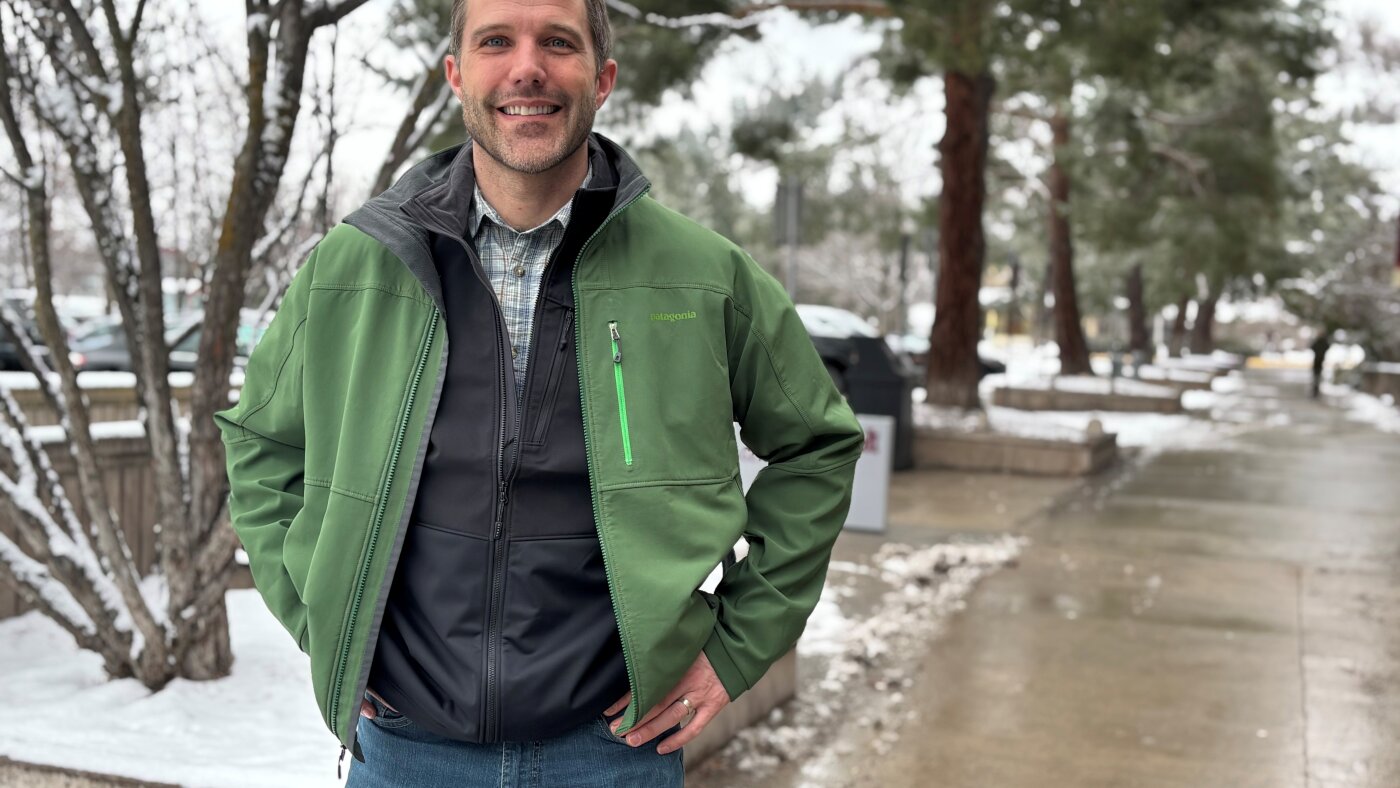
A surprise resignation could open the door for an independent to win a Montana Senate seat

Video: Savannah Guthrie Says She Believes Her Mother Was Taken for Ransom

Stefanik grills University of Michigan leader on lack of audit after string of Chinese national arrests
-

 Detroit, MI1 week ago
Drummer Brian Pastoria, longtime Detroit music advocate, dies at 68
-

 Science1 week ago
How a Melting Glacier in Antarctica Could Affect Tens of Millions Around the Globe
-

 Movie Reviews1 week ago
‘Youth’ Twitter review: Ken Karunaas impresses audiences; Suraj Venjaramoodu adds charm; music wins praise | – The Times of India
-
 Science1 week ago
I had to man up and get a mammogram
-

 Sports6 days ago
IOC addresses execution of 19-year-old Iranian wrestler Saleh Mohammadi
-

 New Mexico4 days ago
Clovis shooting leaves one dead, four injured
-

 Texas7 days ago
How to buy Houston vs. Texas A&M 2026 March Madness tickets
-

 Tennessee3 days ago
Tennessee Police Investigating Alleged Assault Involving ‘Reacher’ Star Alan Ritchson